Docker for web developers: from “works on my machine” to production
Docker packages your app with everything it needs to run, so it behaves the same on your laptop, your teammate’s laptop and your server. Here’s how images, containers and Compose work — with a production-ready Dockerfile for a Node.js app.
 Nasir Mollah
6 min read
On this page10 sections
“It works on my machine” is one of the oldest jokes in software — and one of the most expensive problems. Different Node.js versions, missing system libraries, a database configured slightly differently: small environment differences cause bugs that take hours to track down.
Docker solves this by packaging your application together with everything it needs to run — runtime, libraries, system tools, configuration — into a single, portable unit. If it runs in the container on your laptop, it runs the same way on a teammate’s laptop, in CI and on your production server.
The core ideas
Images
An image is a read-only template: a snapshot of a filesystem plus instructions for how to start your app. Think of it as a recipe that’s already been cooked and frozen. Images are built from a Dockerfile and can be shared through registries such as Docker Hub or GitHub Container Registry.
Containers
A container is a running instance of an image — an isolated process with its own filesystem, network and environment. You can run many containers from the same image, and destroy and recreate them in seconds.
Containers vs virtual machines
A virtual machine emulates a whole computer, including its own operating system kernel. A container shares the host’s kernel and only isolates the process. That’s why containers start in about a second and use far less memory — but also why they are a lighter form of isolation than full virtual machines.
Layers
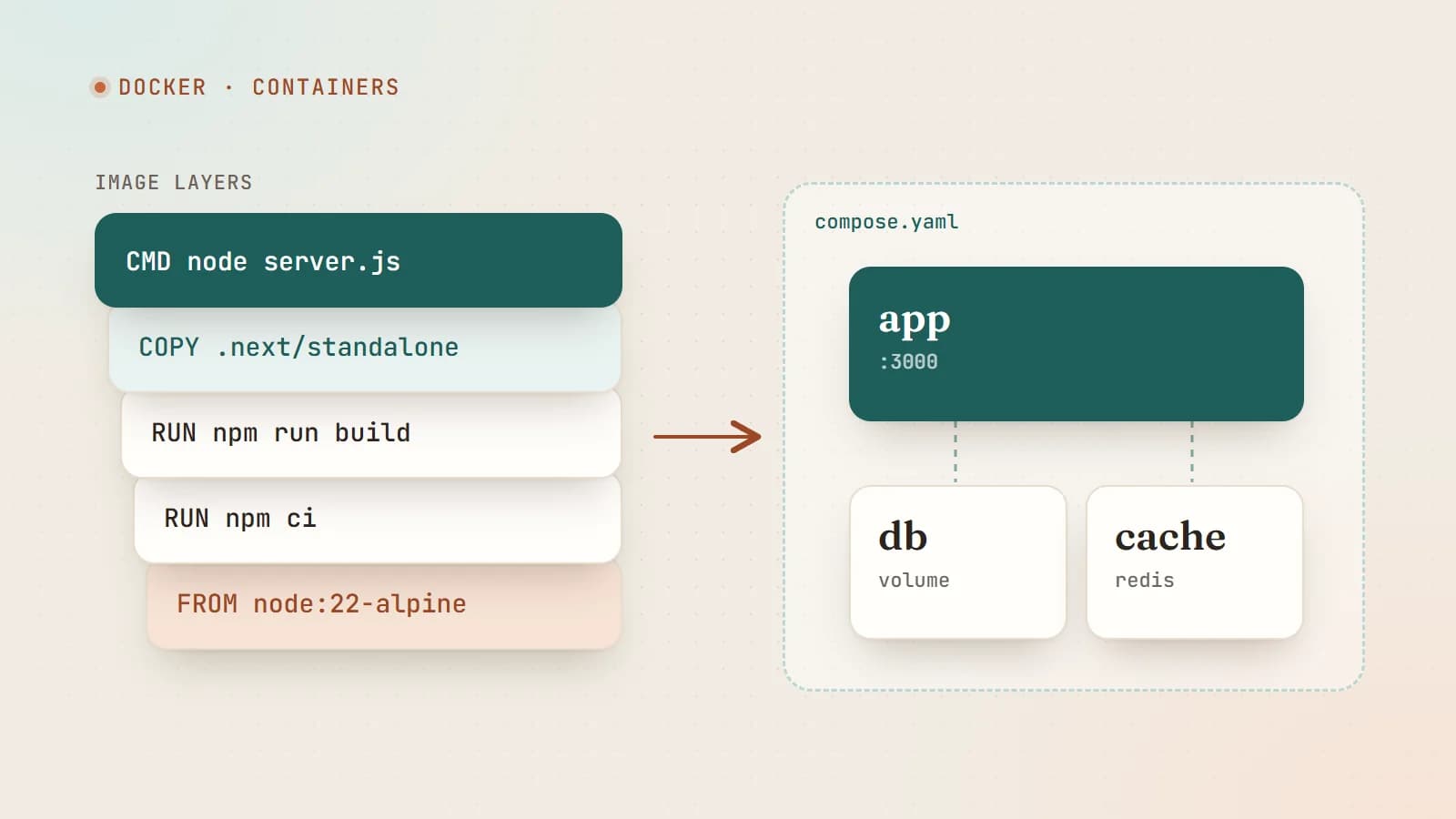
Images are built in layers, one for each instruction in a Dockerfile. Layers are cached and reused: if a layer hasn’t changed, Docker doesn’t rebuild it. Understanding this is the key to fast builds.
Your first Dockerfile
Here’s a simple Dockerfile for a Node.js API:
FROM node:22-alpine

WORKDIR /app

# Install dependencies first (cached unless package files change)
COPY package.json package-lock.json ./
RUN npm ci --omit=dev

# Then copy the source code
COPY . .

ENV NODE_ENV=production
EXPOSE 3000
USER node
CMD ["node", "src/server.js"]
What each instruction does:
- FROM — start from an official base image with Node.js already installed. Alpine variants are small.
- WORKDIR — set the working directory inside the image.
- COPY — copy files from your project into the image.
- RUN — execute a command at build time.
- ENV — set environment variables.
- EXPOSE — document which port the app listens on.
- USER — run as a non-root user (the official Node images include a
nodeuser). - CMD — the command that starts the container.
Build and run it:
docker build -t my-api .
docker run --rm -p 3000:3000 --env-file .env my-api
-p 3000:3000 maps port 3000 on your machine to port 3000 in the container.
Why the order of COPY instructions matters
Notice that package.json is copied and dependencies are installed before the rest of the source. Because of layer caching, changing a line of application code only invalidates the final COPY layer — the slow npm ci step is reused. Copy everything first and every code change reinstalls all dependencies.
Don’t forget .dockerignore
Keep unnecessary and sensitive files out of the build context:
node_modules
.next
.git
.env*
npm-debug.log
Dockerfile
docker-compose*.yml
This makes builds faster and stops secrets from being baked into images.
Multi-stage builds: small, secure production images
Build tools, dev dependencies and source files aren’t needed at runtime. Multi-stage builds use one stage to build and another, minimal stage to run.
Here’s a production Dockerfile for a Next.js app using Next.js’s standalone output (set output: "standalone" in next.config):
# 1) Install dependencies
FROM node:22-alpine AS deps
WORKDIR /app
COPY package.json package-lock.json ./
RUN npm ci

# 2) Build the app
FROM node:22-alpine AS builder
WORKDIR /app
COPY --from=deps /app/node_modules ./node_modules
COPY . .
RUN npm run build

# 3) Run it with only what's needed
FROM node:22-alpine AS runner
WORKDIR /app
ENV NODE_ENV=production
ENV PORT=3000
ENV HOSTNAME=0.0.0.0

COPY --from=builder /app/public ./public
COPY --from=builder --chown=node:node /app/.next/standalone ./
COPY --from=builder --chown=node:node /app/.next/static ./.next/static

USER node
EXPOSE 3000
CMD ["node", "server.js"]
The final image contains the compiled app and only the dependencies it actually uses — often a fraction of the size of a naive image, with fewer packages that could contain vulnerabilities.
Docker Compose: your whole stack in one file
Real apps need more than one service: the app, a database, maybe Redis or a worker. Docker Compose describes them all in a single file and starts them together.
# compose.yaml
services:
  app:
    build: .
    ports:
      - "3000:3000"
    env_file: .env
    environment:
      DATABASE_URL: postgres://app:secret@db:5432/app
      REDIS_URL: redis://cache:6379
    depends_on:
      db:
        condition: service_healthy
      cache:
        condition: service_started

  db:
    image: postgres:16
    environment:
      POSTGRES_USER: app
      POSTGRES_PASSWORD: secret
      POSTGRES_DB: app
    volumes:
      - db-data:/var/lib/postgresql/data
    healthcheck:
      test: ["CMD-SHELL", "pg_isready -U app"]
      interval: 5s
      retries: 10

  cache:
    image: redis:7-alpine

volumes:
  db-data:
Run docker compose up and the whole stack starts. New teammates go from cloning the repository to a running app with one command — no installing databases by hand.
A few things to notice:
- Service names are hostnames. The app connects to the database at
db, notlocalhost— Compose puts the services on a shared network. - Volumes persist data. Without the
db-datavolume, your database would be wiped every time the container is recreated. - Health checks with
depends_onmake the app wait until the database is actually ready.
Development workflow with Docker
For local development you usually want code changes to appear instantly without rebuilding the image. Mount your source code as a volume and run the dev server:
services:
  app:
    build:
      context: .
      target: deps          # reuse the dependency stage
    command: npm run dev
    volumes:
      - .:/app
      - /app/node_modules   # keep the container's node_modules
    ports:
      - "3000:3000"
Many teams also take a pragmatic middle path: run the app directly on their machine for fast iteration, and use Docker Compose only for databases and other services.
Useful commands
docker ps                     # running containers
docker logs -f <container>    # follow logs
docker exec -it <container> sh  # open a shell inside a container
docker compose up -d          # start the stack in the background
docker compose down           # stop and remove containers (volumes stay)
docker image ls               # list images
docker system prune           # clean up unused data (read the prompt!)
Production best practices
- Pin versions. Use specific base image tags (for example
node:22-alpinerather thannode:latest) so builds are reproducible. For maximum reproducibility, pin by digest. - Run as non-root. Use the
USERinstruction. If an attacker compromises the app, they shouldn’t be root inside the container. - Never bake secrets into images. Pass them at runtime as environment variables or through your platform’s secret management. Anything copied into an image can be extracted from it.
- Keep images small. Multi-stage builds, slim base images and
.dockerignorereduce size, build time and attack surface. - Scan images for known vulnerabilities and rebuild regularly to pick up base image security updates.
- One process per container. Run the app, the worker and the database as separate services.
- Log to stdout/stderr. Let Docker and your platform collect logs instead of writing log files inside the container.
- Add health checks so orchestrators can restart unhealthy containers.
- Handle shutdown signals. Make sure your app exits cleanly on
SIGTERMso deployments don’t drop requests.
Where containers run in production
Once your app is an image, you have many options:
- A single VPS running Docker Compose — simple and inexpensive for small apps, especially with an automated deployment pipeline.
- Managed container platforms that run your image and handle scaling and TLS.
- Kubernetes for large systems with many services — powerful, but significant operational complexity you may not need yet.
When Docker isn’t worth it
Docker isn’t mandatory. A static site on a CDN or a Next.js app on a platform that builds from your repository may not benefit from containers at all. Docker earns its keep when you have multiple services, need identical environments across a team and CI, deploy to your own servers, or want portability between hosting providers.
The takeaway
Docker turns your application’s environment into code: versioned, reviewable and reproducible. Learn the basics — images, containers, layers, Dockerfiles and Compose — and you’ll spend less time debugging environments and more time building features. Add multi-stage builds, non-root users and runtime secrets, and the same image becomes a solid foundation for production.
- Docker
- DevOps
- Node.js
- Deployment
Keep reading
5 min read
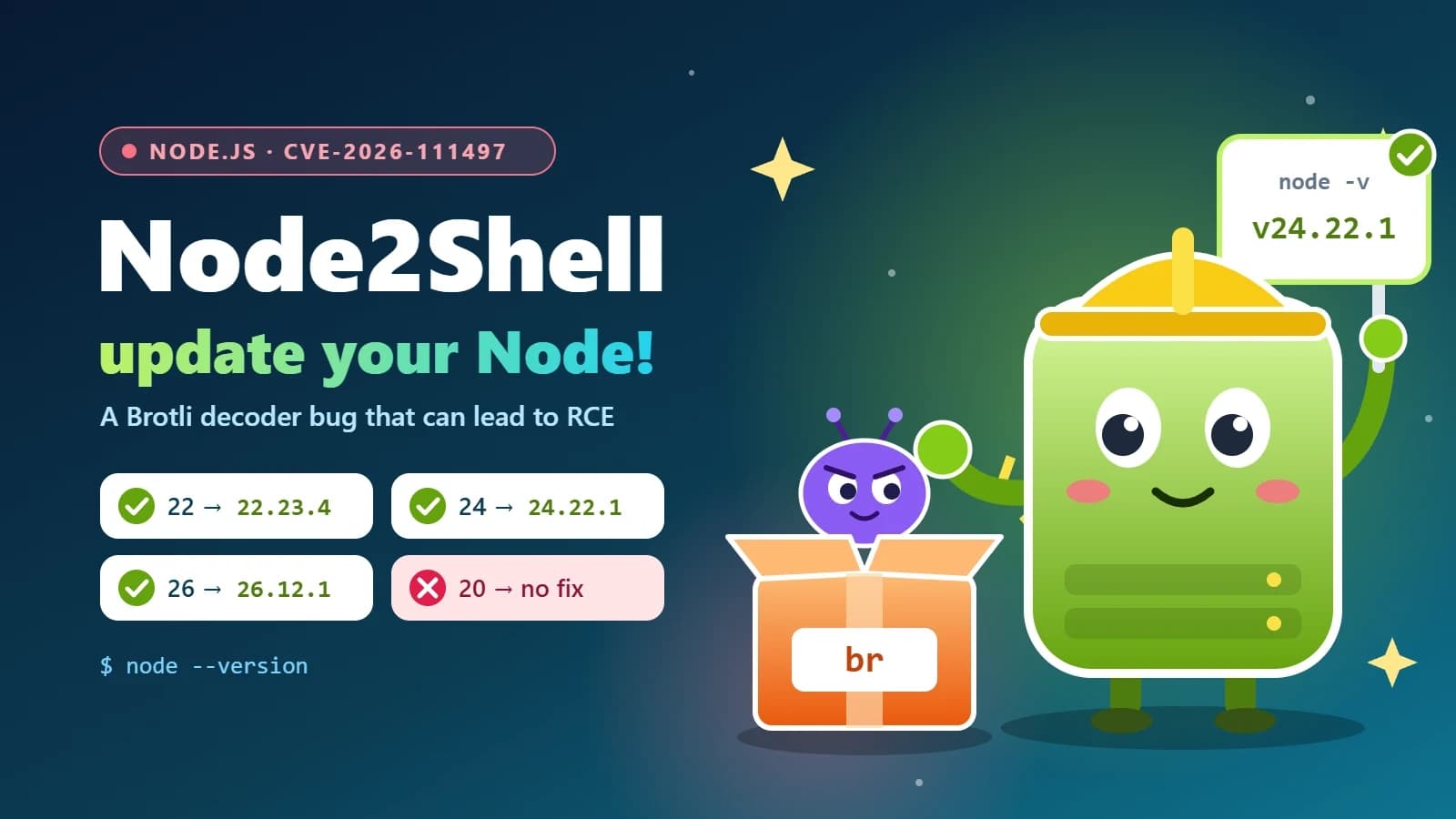
Node2Shell (CVE-2026-111497) explained: is your Node.js app exposed, and how to patch it
Node2Shell is a high-severity bug in the Brotli decoder bundled with Node.js that can lead to remote code execution. Here’s who is exposed, how to check your servers, Docker images and CI, and which versions fix it.
- Node.js
- Security
- DevOps
- Docker
6 min read
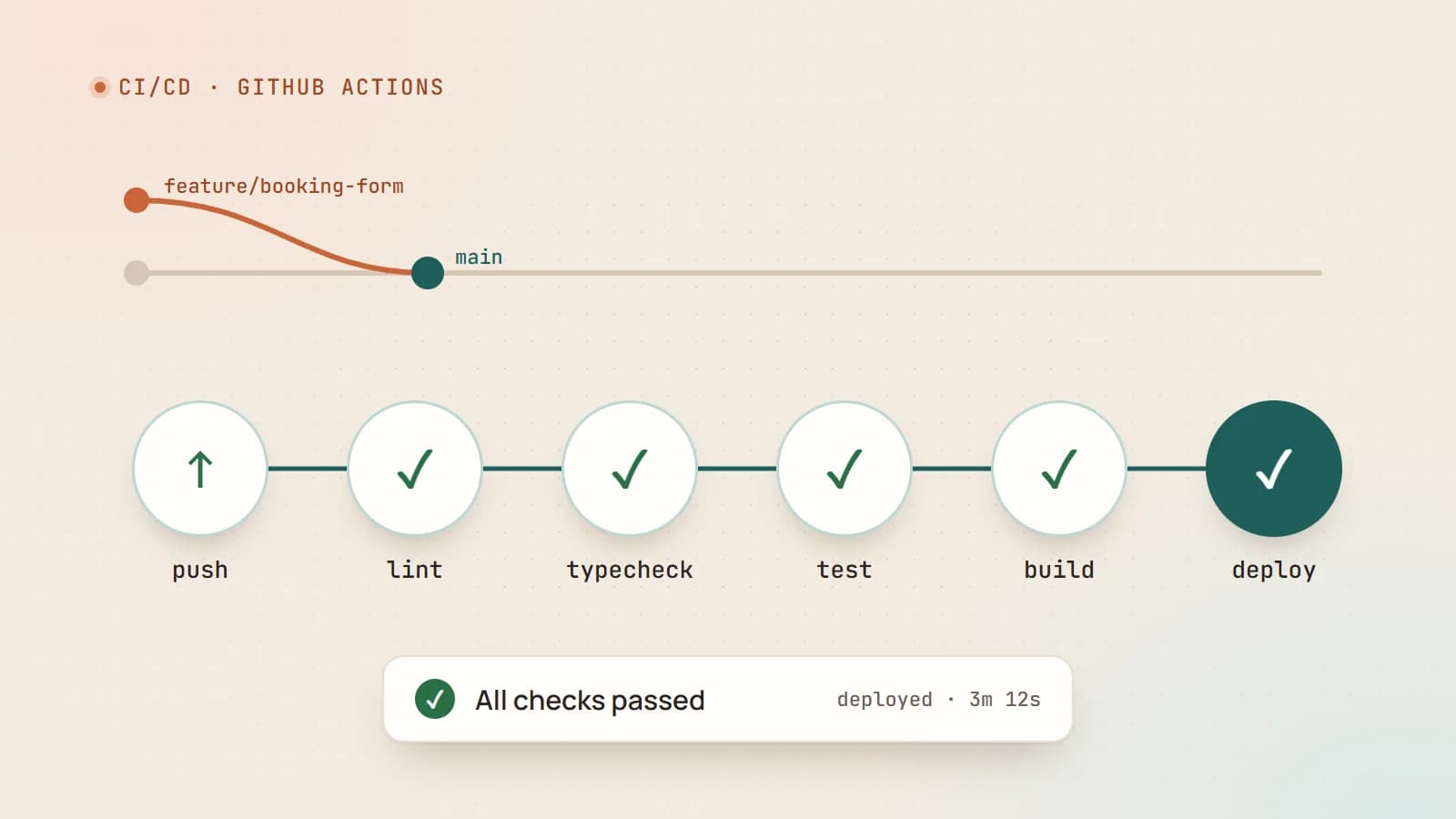
CI/CD with GitHub Actions: automate testing and deployment for your web app
Every manual deployment is a chance to forget a step. Here’s what CI/CD really means, how GitHub Actions works, and complete workflows that lint, test, build and deploy a web app automatically — safely.
- CI/CD
- GitHub Actions
- DevOps
- Deployment
6 min read
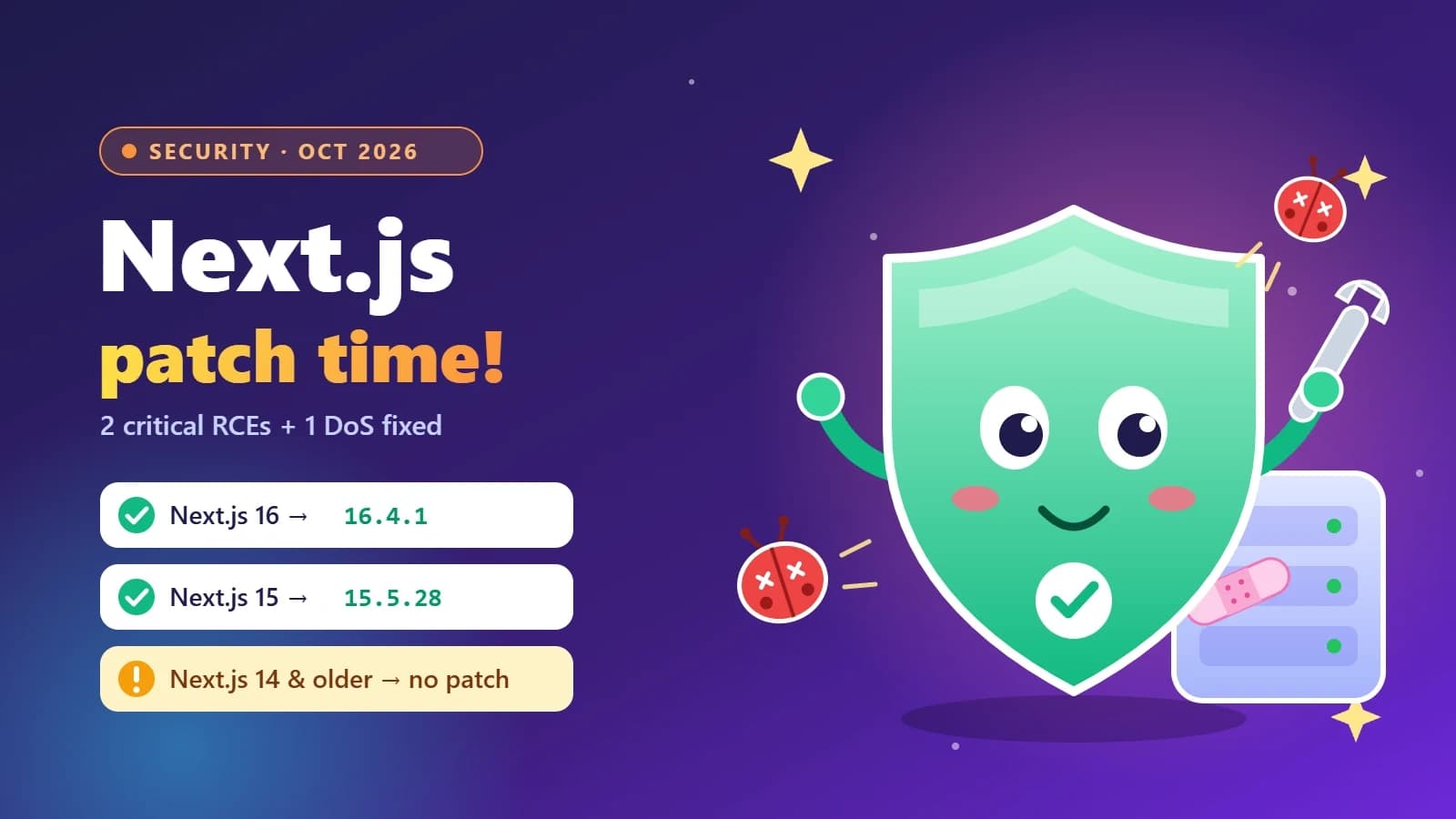
Next.js security update October 2026: which versions are vulnerable and how to upgrade
Next.js 16.4.1 and 15.5.28 fix two critical remote code execution bugs and a Server Actions denial of service. Here’s how to tell if your app is affected, how to upgrade safely, and what the November 3 security release means for you.
- Next.js
- Security
- Web Development
- Node.js
Building something? Let’s talk.
If you’re planning a web app, a website or a new feature, a free call is a good place to start — you’ll get honest options, a fixed price and a timeline.